GETTING STARTED
Screenshots
You can capture a screenshot at any time from the Menubar, under the File Menu: File → Save Screenshot. Once clicked, a dialog will open, from which you can provide the screenshot's name and location that the image will be saved. Screenshots are saved in PNG Format.
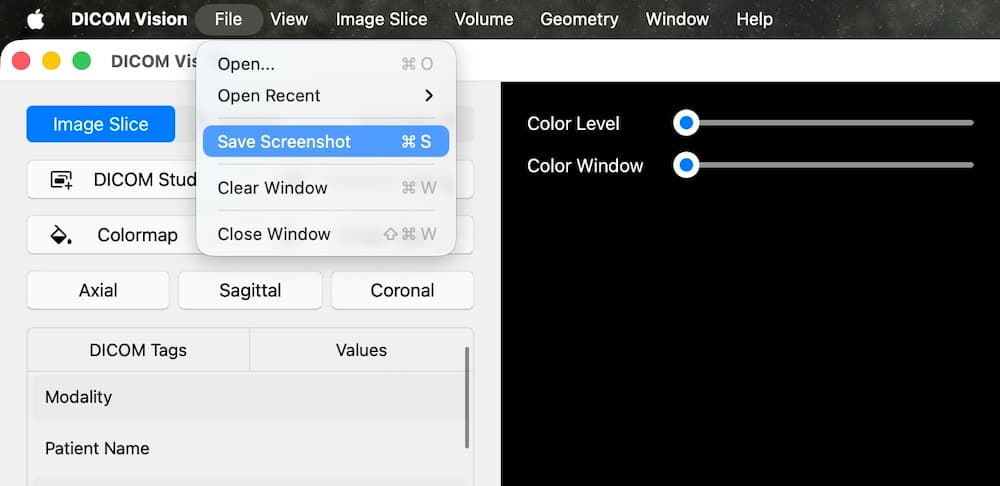
The only condition for a successful screenshot is that the Viewer is not empty.
Keyboard Shortcuts
On Macs, you can use the Command + S keyboard shortcut to trigger a Screenshot. On Windows, use the Ctrl + S keyboard shortcut.
© 2026 Marceda Ventures Limited.