Isosurface Creation
An isosurface is a 3D contour line that connects all points in a 3D image data (like CT or MRI scans) where the intensity/density matches a specific value, forming a smooth surface around structures such as bones or organs. In DICOM Vision, given a minimum and maximum value, a 3D Surface will be created representing the areas in your image data that fall within this threshold.
Click the 'Isosurface' button, and a menu will appear containing preset values for different tissues and organs. Select any preset, and a 3D polygonal model will be created with the corresponding minimum and maximum values. Learn how to interact with this 3D model in the Interaction section.
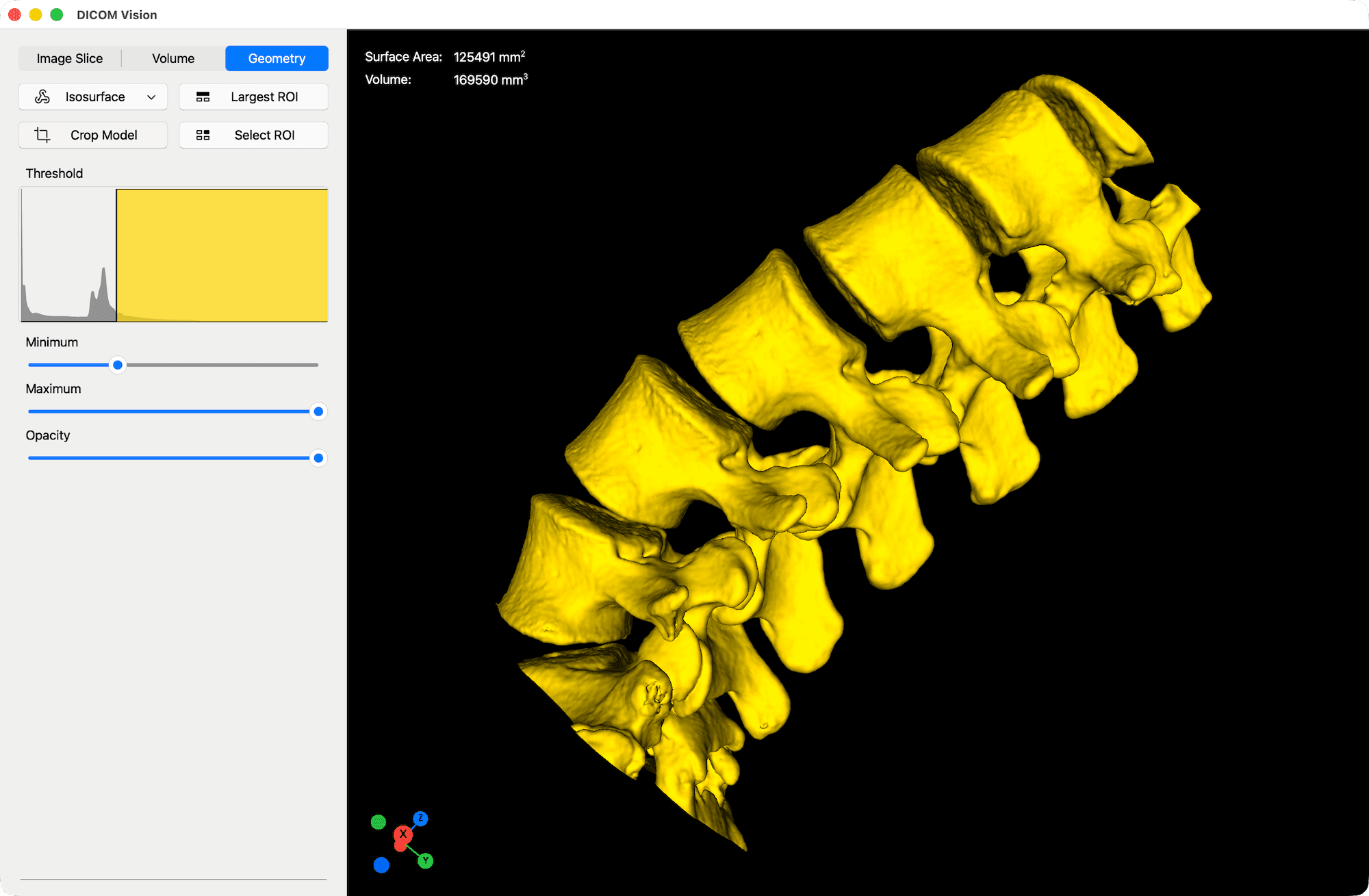
The 'Threshold' chart found in the Tools Panel, contains two graphs. The first is an area graph giving you a visual representation of the values that fall within the minimum and maximum threshold values. The color of this graph matches the color of the model in the Viewer. The second is a histogram of the pixel values in your image dataset, represented by the dark grey area graph. This histogram gives you a visual representation of the distribution of values in your dataset, and acts as a useful guide when adjusting the minimum and maximum threshold values.
Below the 'Threshold' chart are three slider widgets. The first controls the Minimum threshold value. The second controls the Maximum threshold value. Use these two sliders to refine the isosurface. Every time the handle in each of these two sliders is moved and released, the model in the Viewer will instantly update. The third slider controls the opacity of the model.
The Surface Area and Volume of the 3D model are displayed at the top-left of the Viewer. These measurements are calculated and updated each time the minimum or maximum values are adjusted.
You can customize the appearance of the 3D model by changing its color from the menubar, under the Geometry menu: Geometry → Set Model Color.
Wireframe View
The 'Wireframe View' allows you to view the internal topology of the 3D model, peeling back the outer layer of the isosurface, revealing internal structures.
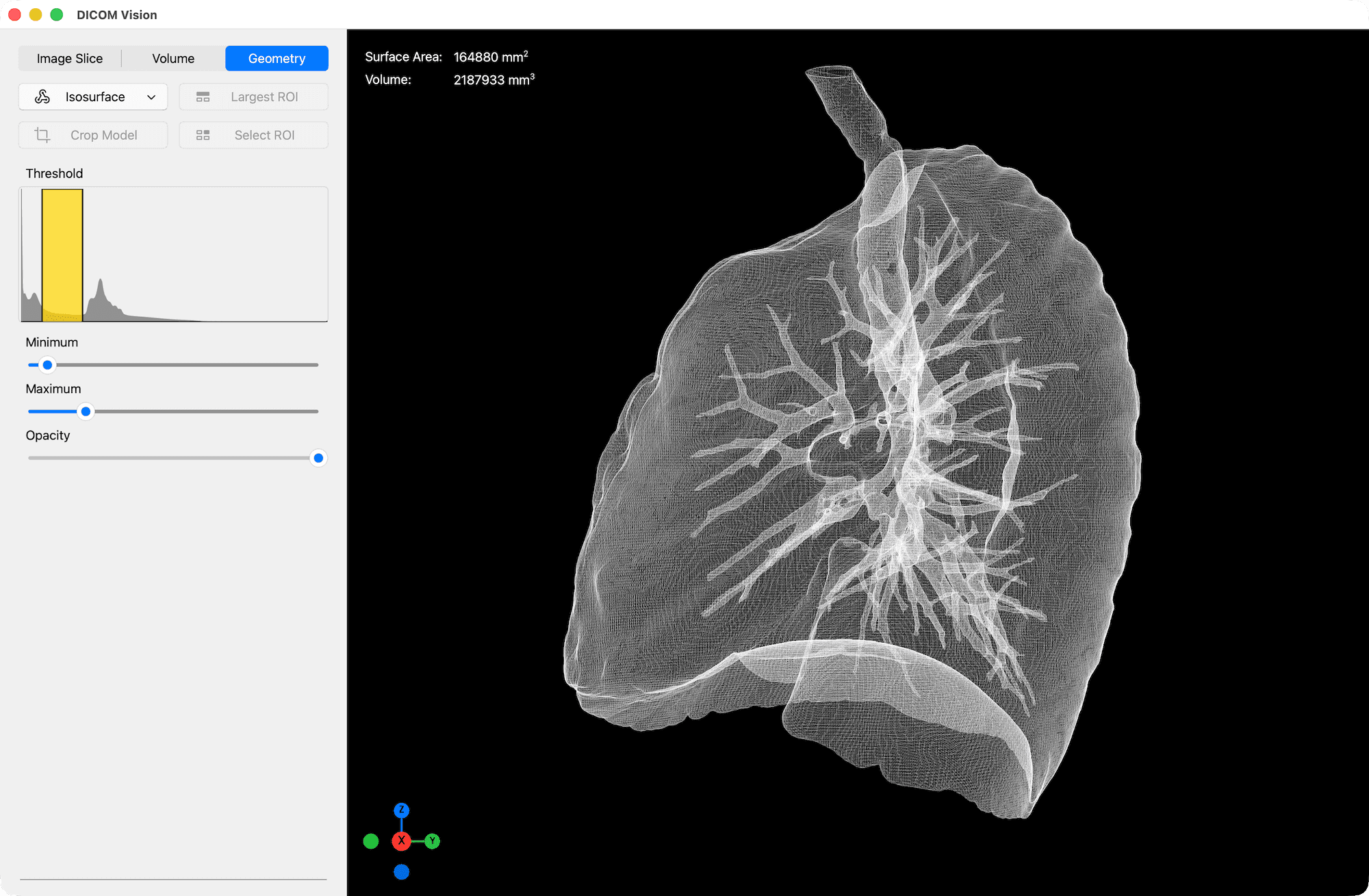
Activate this feature from the menubar, under the Geometry menu: Geometry → Wireframe View. Deactivate it by returning to the Geometry menu, and selecting this option once again.