Apply Colormaps
In DICOM Vision, you can apply distinct colormaps to your images, to enhance your view of the intricate details in each slice. The colormaps come in two sets:
- Perceptually Uniform Colormaps.
- DICOM Standard Color Palettes.
The primary feature of the Perceptually Uniform Colormaps is that when applied, equal steps in data are perceived as equal steps in the color space. These colormaps are frequently used in scientific study, and may be easily recognizable, with common examples including Jet, Hot, Bone and Plasma.
The DICOM Standard Color Palettes are defined in the DICOM Standard. They include:
- Hot Iron: The Hot Iron color palette is often used in nuclear medicine applications to make differences in signal intensity (counts) more apparent to the human observer.
- PET: The PET color palette is often used in PET applications to pseudo-color the superimposed PET images when displayed fused with underlying CT images.
- Hot Metal Blue: The Hot Metal Blue colour palette is often used in nuclear medicine or PET applications to make differences in signal intensity (counts) more apparent to the human observer.
- PET 20 Step: The PET 20 Step colour palette is often used in PET applications to make differences in signal intensity (counts) more apparent to the human observer.
- Spring, Summer, Fall & Winter: These Colour Palettes are suggested for use in colour fMRI activation maps. They shade from one pastel colour to another which is distinctly different, making them suitable for illustrating either unipolar or bipolar activation. They convey activation strength within one statistical parametric map, while making it possible for the human observer to distinguish between different fMRI activation maps in the same blended display.
Learn more about them here.
Colormap Application
Click the Colormap button and a menu will open with all available colormaps. Grayscale is active by default. Once you have images loaded into the Viewer, open the menu, and pick a colormap. It will be applied instantly.
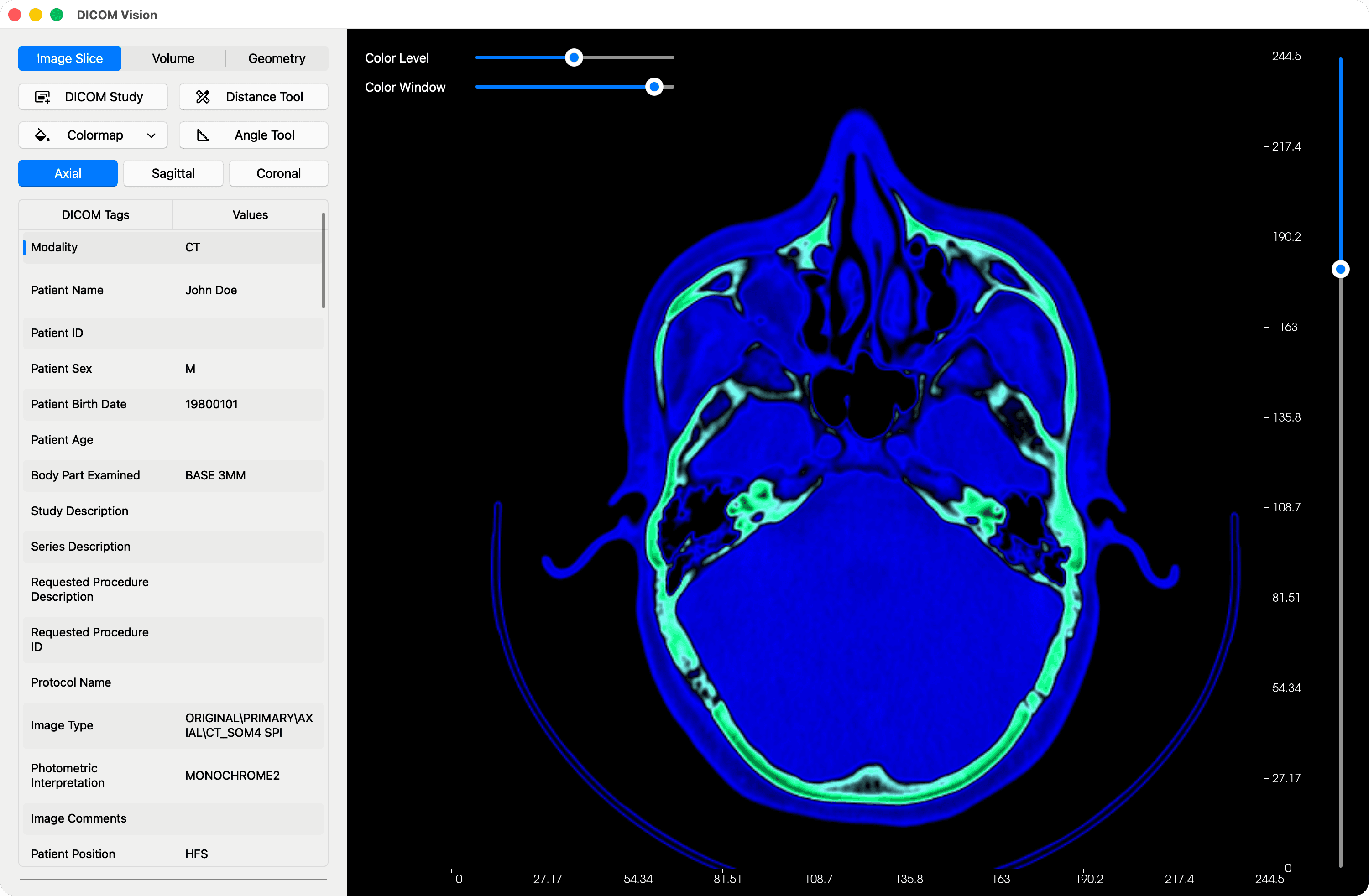
Color Level & Color Window
In the visualization of DICOM images, color level and color window are critical attributes that control how pixel intensity values are mapped to visible brightness and contrast on a display. These settings significantly influence the final appearance of medical images.
Color Level (Window Center)
This parameter defines the midpoint of the range of pixel intensity values that will be displayed. It determines the brightness of the image. For example, if the level is set to a lower value, darker areas of the image become more prominent, while higher values emphasize brighter regions.
Color Window (Window Width)
The window width specifies the range of pixel intensity values around the center that will be mapped to the visible grayscale or color spectrum. A narrow window width increases contrast by focusing on a smaller range of pixel intensities, making subtle differences in intensity more noticeable. Conversely, a wider window width reduces contrast by encompassing a broader range of intensities.
Impact on Contrast and Brightness
Narrowing the window width enhances contrast, which is useful for identifying fine details like small lesions or nodules.
Changing the level can shift focus between darker and lighter regions, aiding in specific diagnostic tasks.
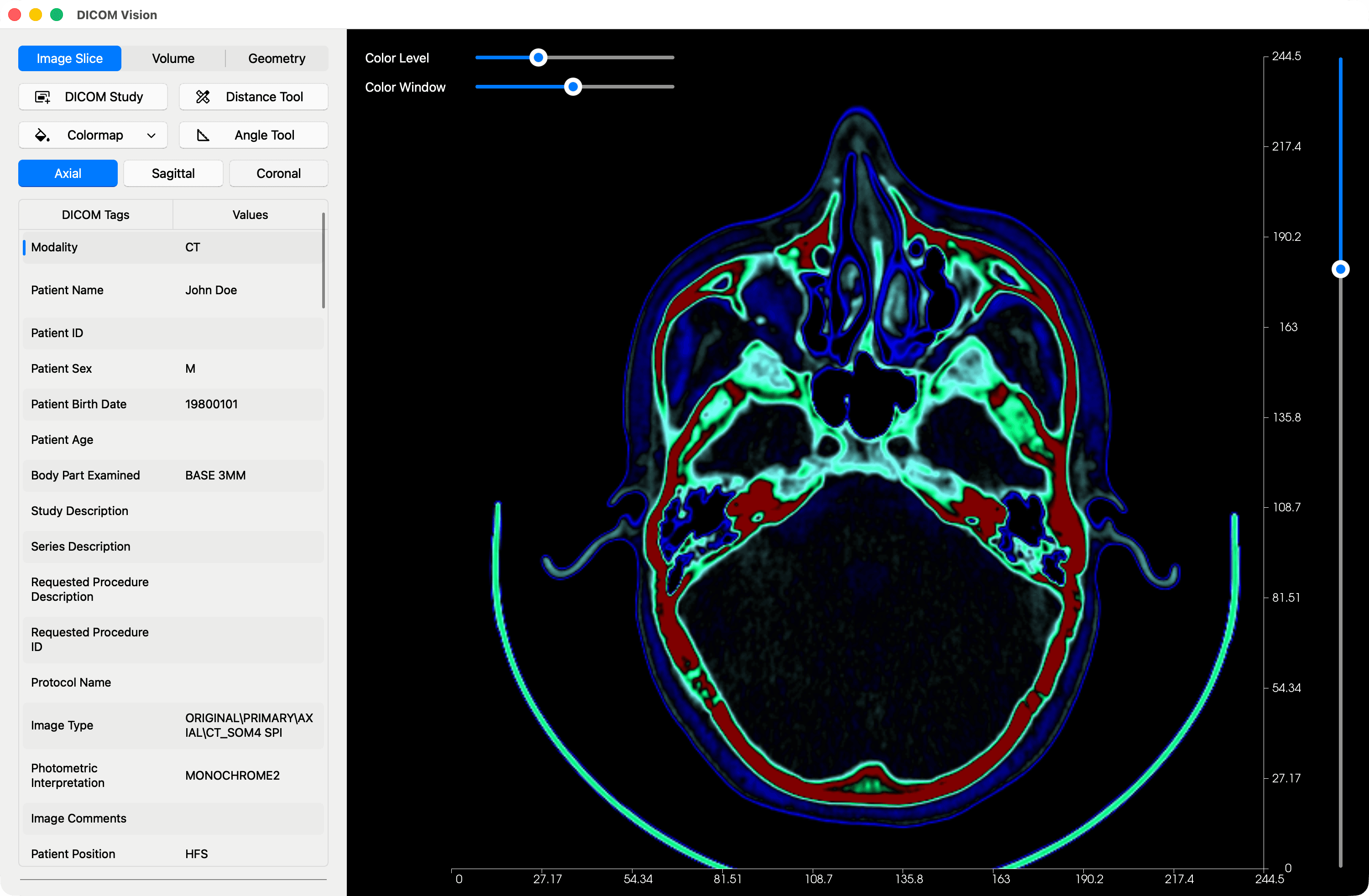
Take the example above, the Color Level has been lowered, and the Color Window narrowed. Compare this with the previous image earlier in this section. This is the same image. Adjusting the color level and window width directly affects how details in the image are perceived.
Use the Color Level and Color Window sliders found to the top-left of the Viewer, to further customize your image visualization, and enhance diagnostic accuracy. These sliders are shown by default, however, if you don't want to use them you can hide them from the menubar under the Image Slice menu: Image Slice → Show Color Level & Color Window. Your preference will be saved.
Black Colormap Base
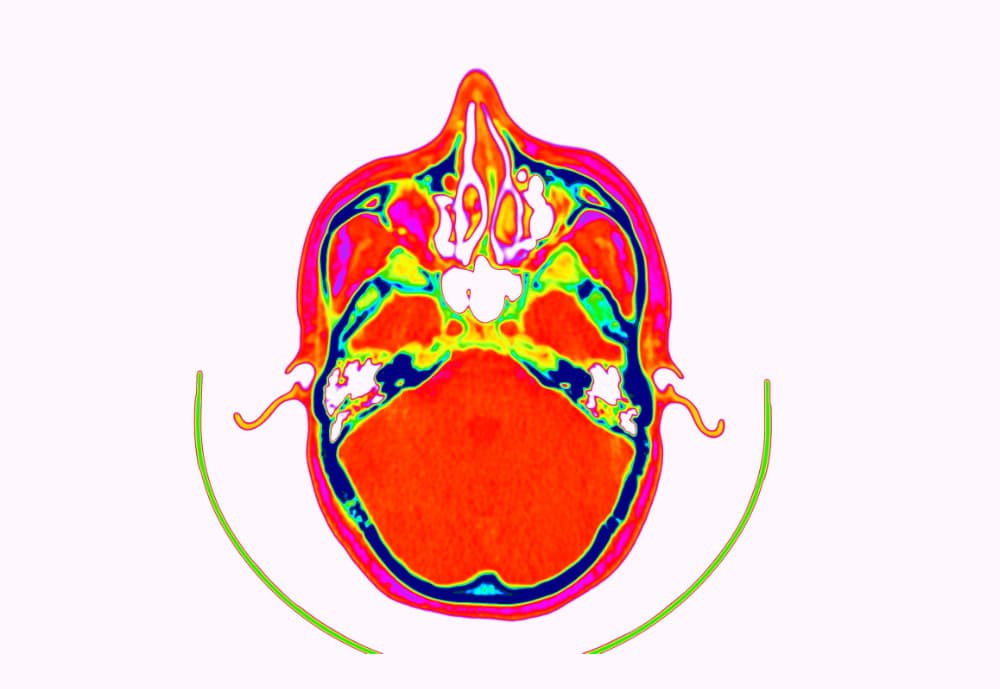
This tool applies to colormaps whose initial color isn't black. To enhance contrast in your image, you may want to alter the colormap, and set the base color to black. Take the images below as an example. The image to the left shows a DICOM image with the 'Gist_ncar reversed' colormap applied. To the right is the same image, with the initial color changed to black.
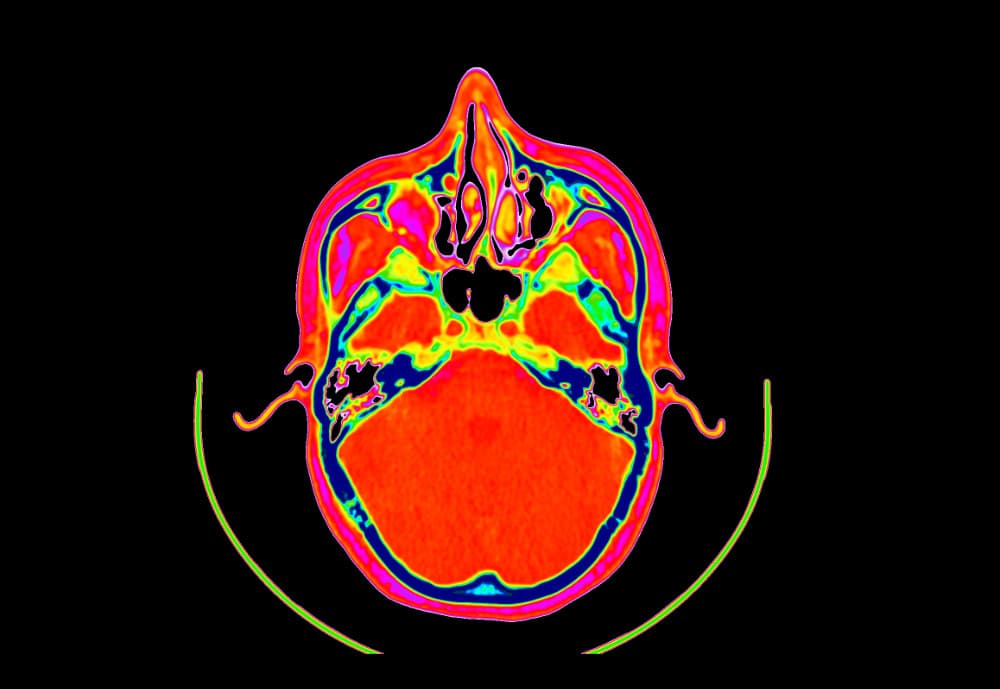
Activate the application of a Black Background to all your colormaps from the menubar, under the Image Slice menu: Image Slice → Apply Black Colormap Base. Your preference will be saved.