Import Images
The import process happens in three steps:
- Select Folder Location.
- Select Series for Import.
- Selected Series is loaded onto the Viewer.
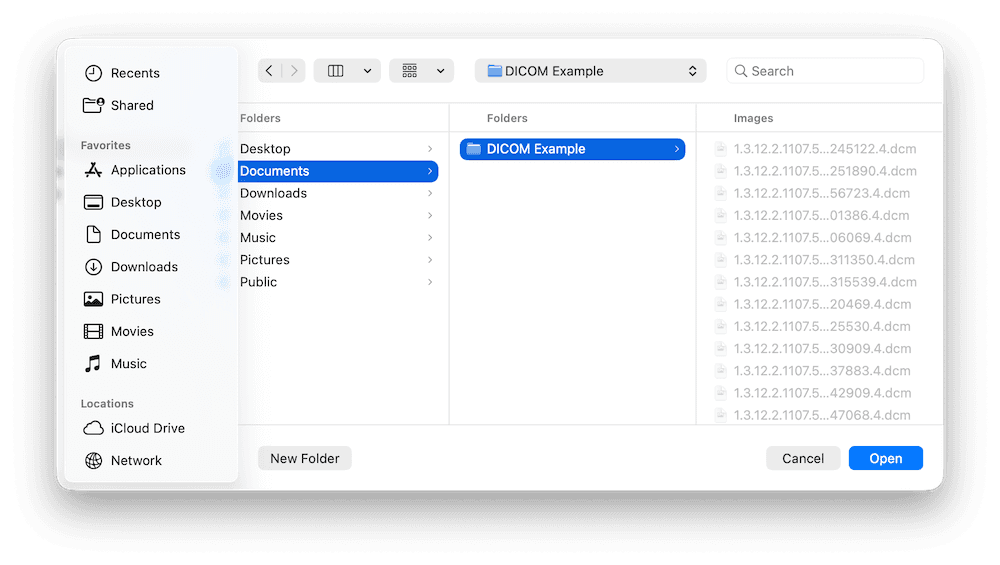
First, select the 'DICOM Study' button. A dialog will open, from which you can select the folder containing DICOM images to import. Once selected, DICOM Vision will scan for DICOM files up to 5 subdirectories deep, allowing you to select a parent folder and pick the DICOM Series you are after from the resulting previews.
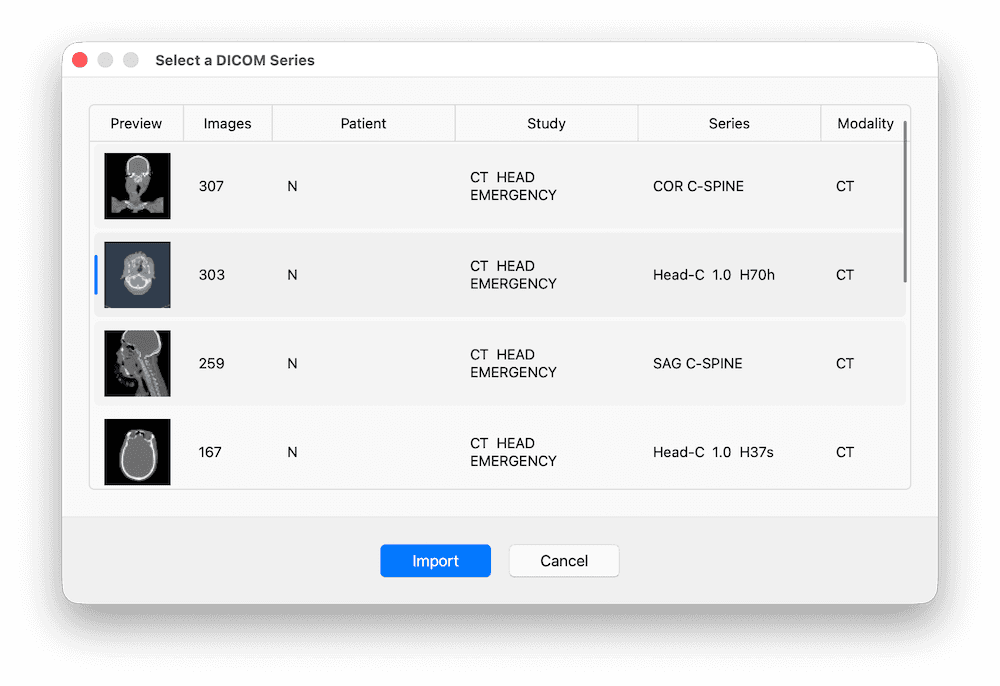
Next, DICOM Vision will group all Images in the selected folder into their respective series, and give you a preview of each, as illustrated in the example below. The table includes a summary of each series including a preview image, number of images in the series, patient names, study description, series description and modality. Select the row containing the series you wish to import, and click the 'Import' button.
Note that if only one series is detected in the folder you select, this step will be skipped.
Slices in the original orientation will be loaded onto the Viewer in grayscale. Drag the slider on the right, either up or down, to scroll through all slices in the series. Use the Axial, Sagittal and Coronal buttons to switch between orientations.
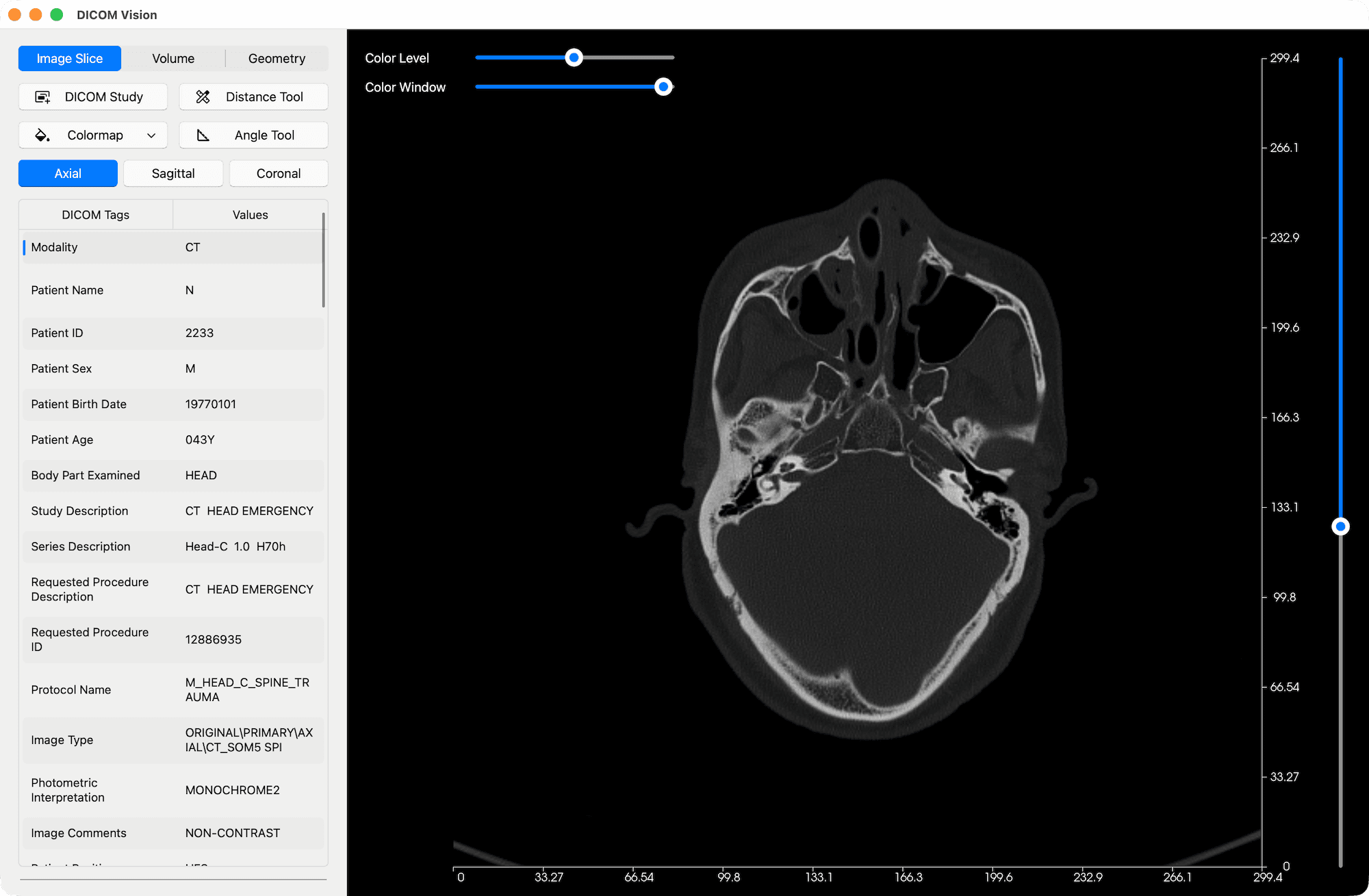
X & Y axes, featuring 10 equally spaced points, are added onto the length and width of each slice. Each point includes the distance from the origin. These axes are added by default, however you can hide them if you wish, from the menubar under the Image Slice menu: Image Slice → Show Measurement Axes. Your preference will be saved.
An extensive list of DICOM Tags read from the imported images, is put together, and displayed in a table found just below the orientation buttons.
Refer to the Interaction section to learn how to pan or zoom in and out, based on your device.