Crop Tool
The Crop Tool is incredibly useful when you want to reveal internal structures in your volume render. Additionally, if you want to narrow your focus to a specific region of interest in your image data, this tool would also be highly beneficial.
Activate the Crop Tool by clicking the 'Crop Volume' button. A box widget will be placed on your volume render. The box widget has a handle on each face, represented by a red sphere. You can select each handle, and drag inwards or outwards to effect a crop.
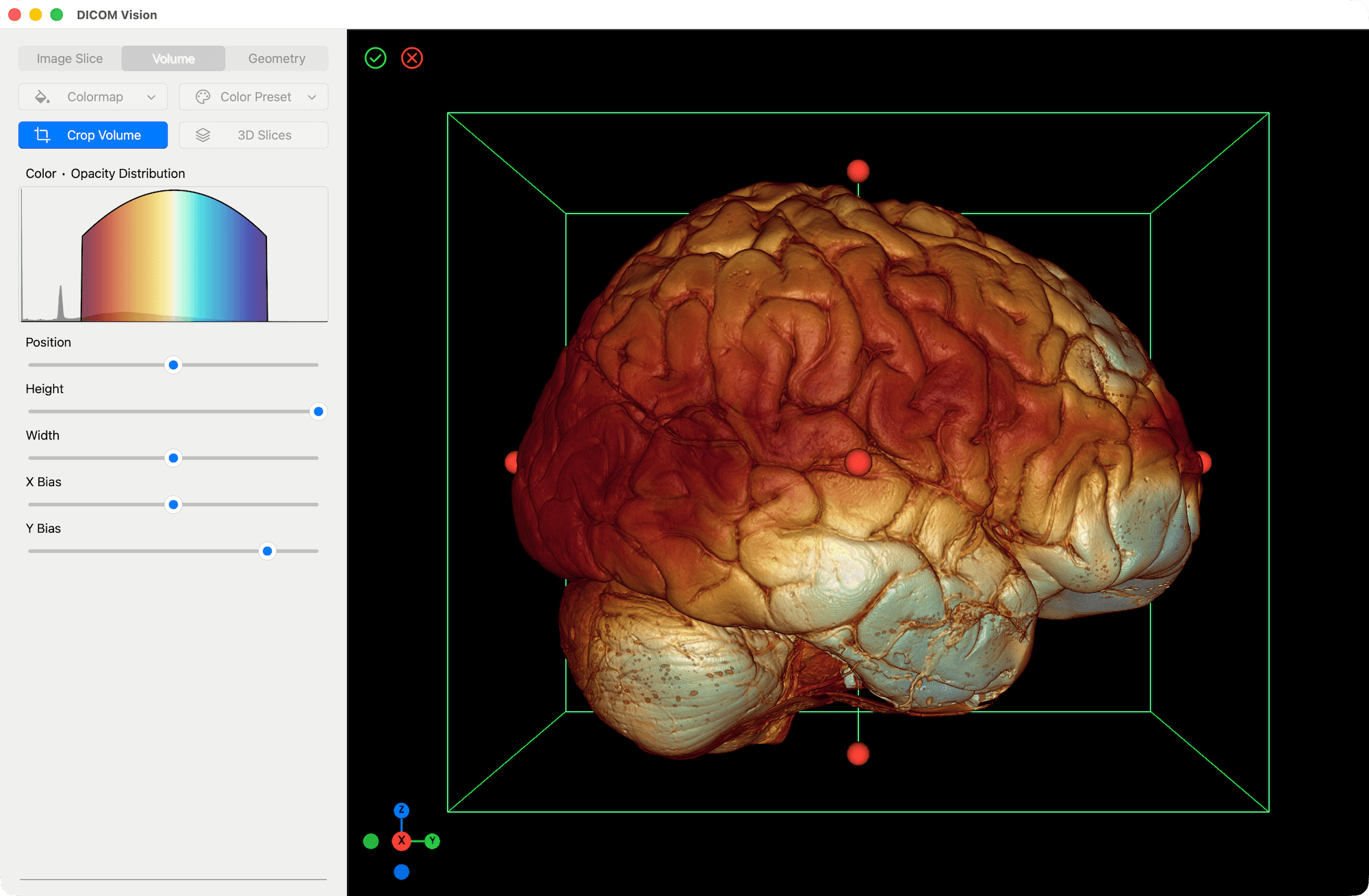
In the image above, the box widget has been activated. In the image below, the handle on the left face on the x-axis has been dragged inwards. You can see the crop reveals internal structures of the brain.
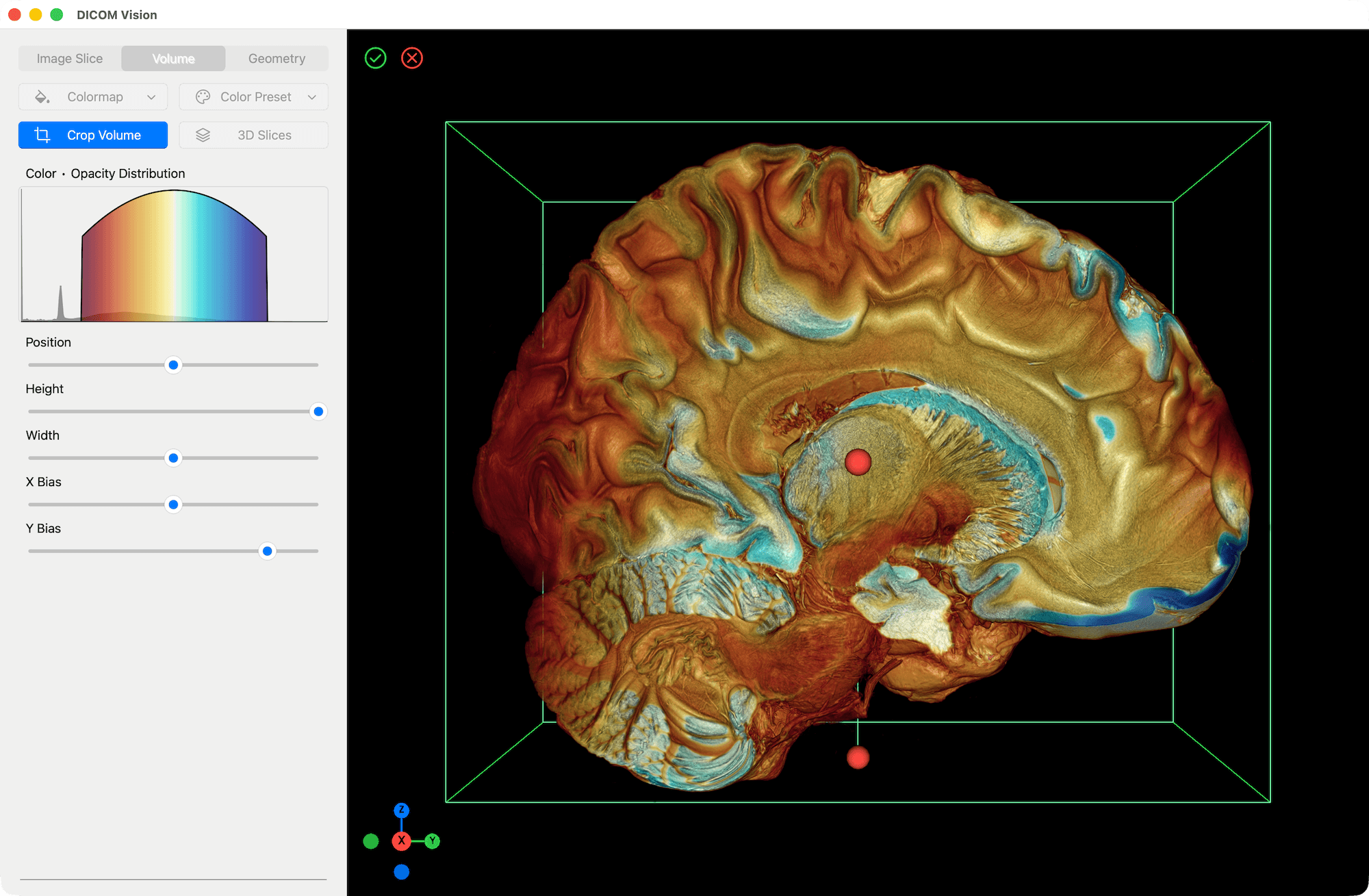
Select the green 'Tick' button found at the top-left of the Viewer to accept the crop, or the red 'Cancel' button to cancel it. You can deactivate the crop tool at any time, by clicking the 'Crop Volume' button once more.
Lower-End GPUs
As stated above, the crop tool can be very useful if you want to narrow your focus to a specific region of interest in your image data. An additional benefit of this is a reduction in the load on your device's GPU.
If you have an entry-level device, it is likely that your device's GPU will not rank highly in performance benchmarks. Volume rendering can be incredibly taxing on your GPU, especially if you're dealing with image data of a very high resolution. You may experience slower frame rates on the Viewer, as you interact with actors in the scene.
Cropping removes unwanted portions of a 3D dataset, focusing computation and visualization on relevant regions. Excluding irrelevant data enhances rendering efficiency, speeding up ray casting and reducing GPU load for interactive exploration.