Interface
macOS
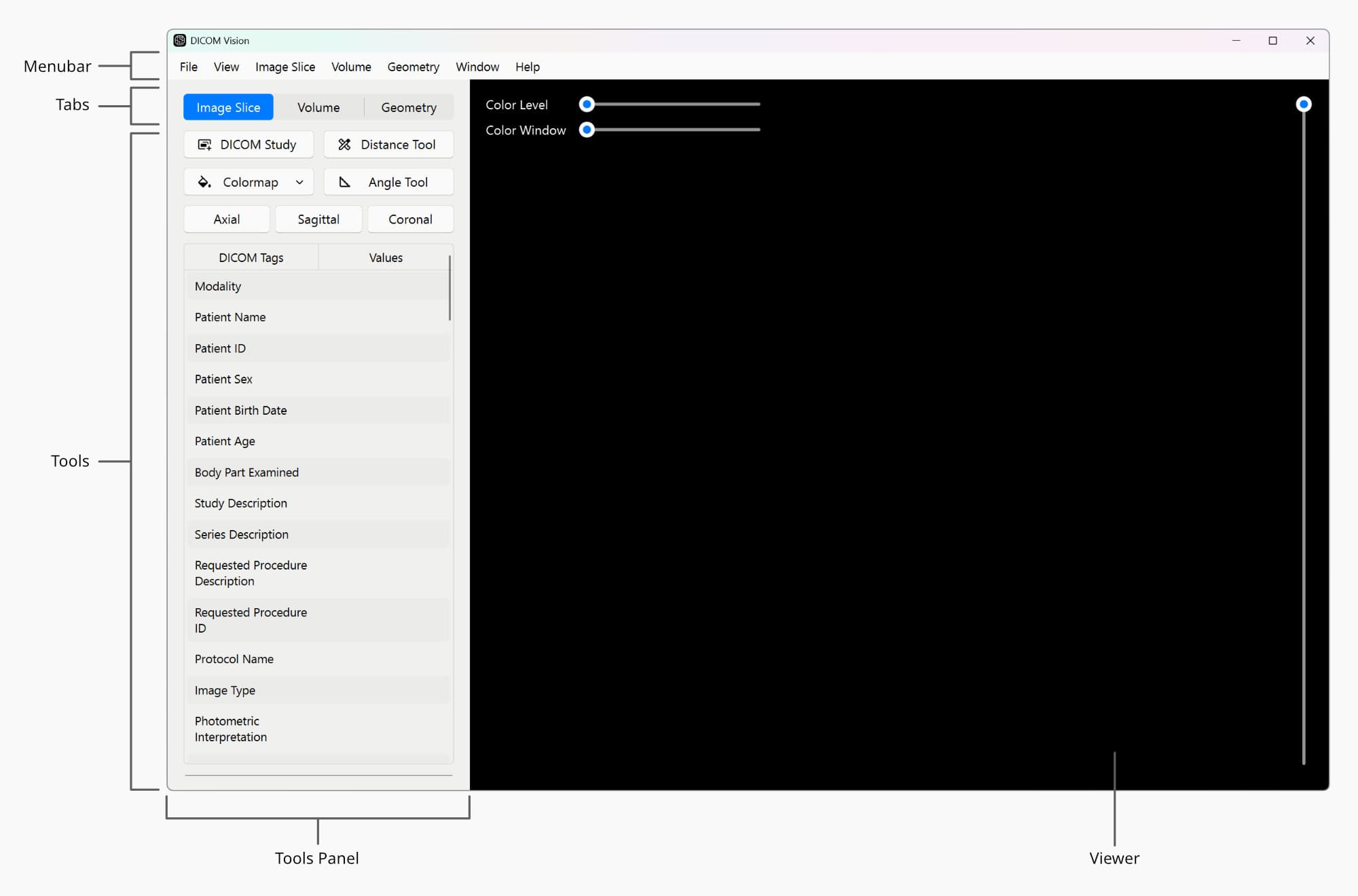
DICOM Vision 2 features a user-friendly interface, with all widgets clearly marked with the function that they perform. The UI consists of two main parts, the Tools Panel and the Viewer. The Tools Panel contains all buttons, tables and charts. The Viewer displays 2D Slices, 3D Volume Renders or 3D Polygonal Models, depending on which tab you are on.
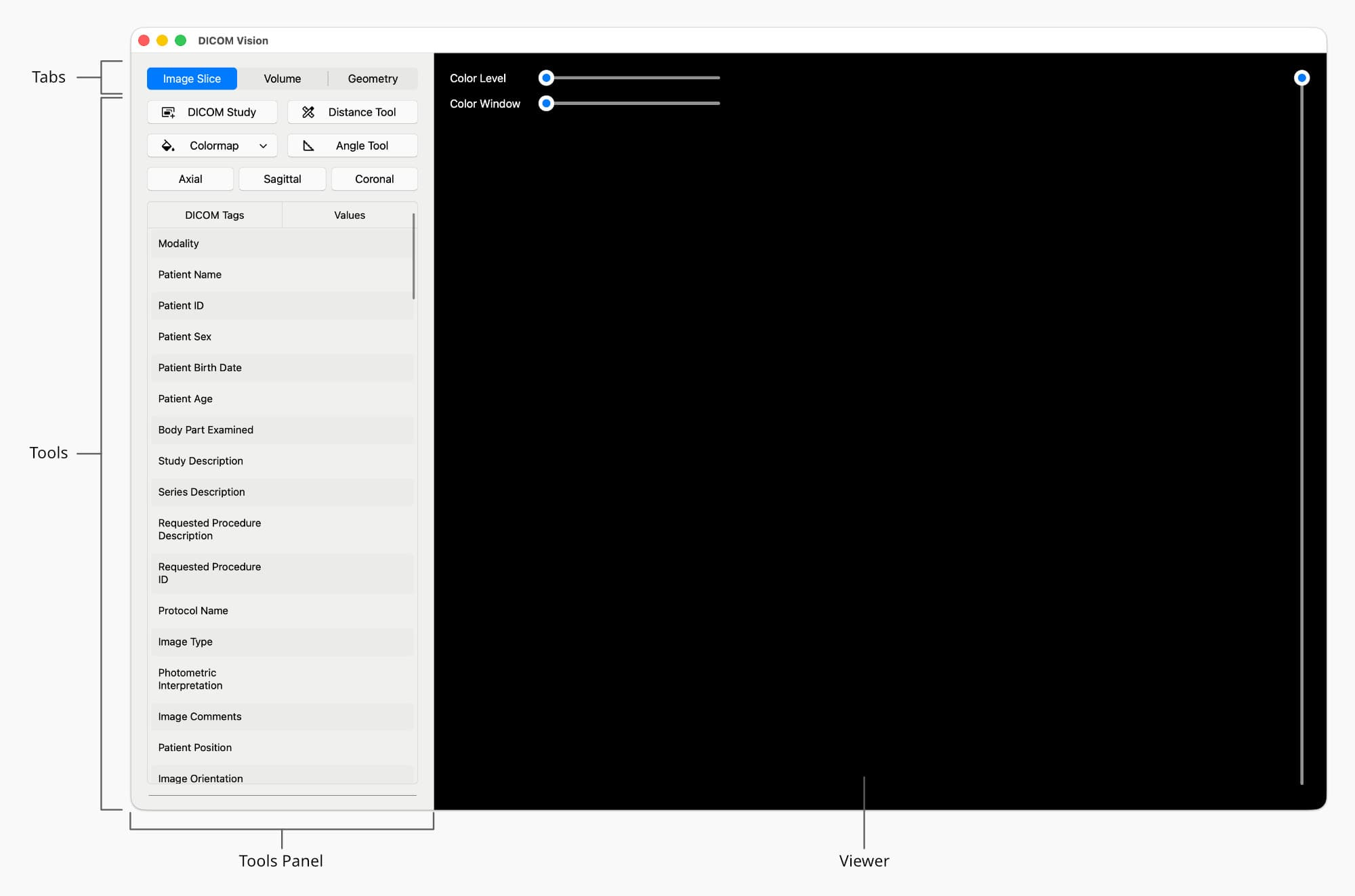
The Tools Panel has two main sections: Tab buttons at the top, and the Tools specific to that tab below. DICOM Vision has three main tabs:
- Image Slice: All tools related to the visualization and analysis of 2D slices are found here.
- Volume: All tools related to the creation of interactive 3D Volume Renders are found here.
- Geometry: All tools related to the creation of 3D Polygonal Models are found here.
On startup, DICOM Vision will always have the Image Slice Tab open. The reason being that most tools in the application require a series of medical images to be loaded first.
Windows
The only difference in UI between macOS and Windows is the location of the menubar within the application's window.