Apply Colormaps
In DICOM Vision, you can visualize volumes in two ways: application of Volumetric Colormaps or application of Color Presets. Of the two, application of volumetric colormaps is more versatile and dynamic, allowing you to customize the volume render to highlight your specific regions of interest with relative ease. Unlike color presets, which consist of predefined values that may or may not fit your image data well, the colormaps are applied dynamically to your data, able to fit images with a wide or small range of values with little compromise.
Follow the guide below to understand how it works, and how you can customize the volume render with the Colormap Sliders to achieve the best results.
How It Works
Click on the 'Colormap' button and a menu will appear. Select any of the colormaps in the menu,and it will be applied instantly. A volume render of your image data will appear on the Viewer, exhibiting the range of colors from the chosen colormap. You can interact with this 3D volume as described in the Interaction section.
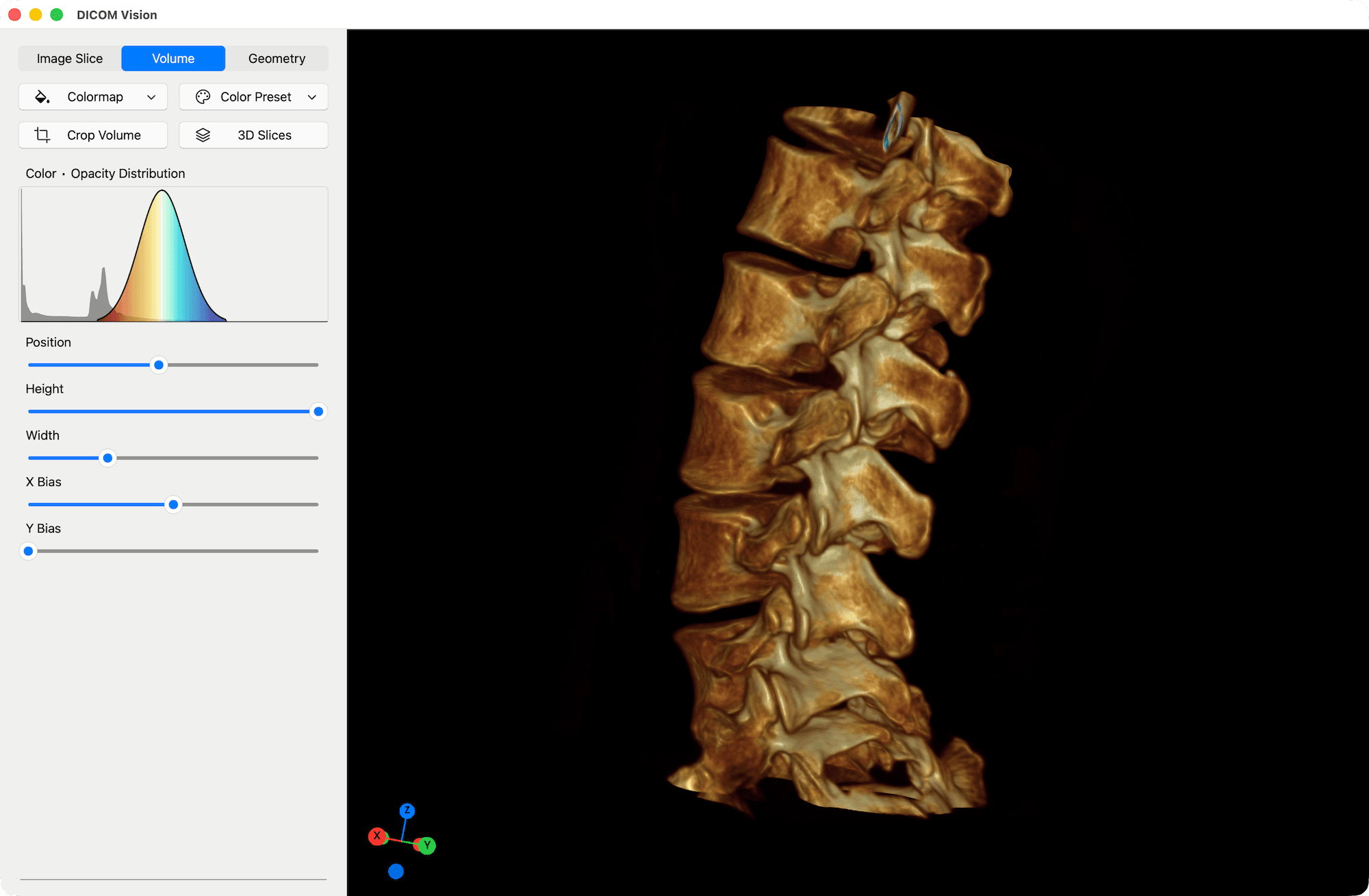
In the example above, the 'Warm to Cool' colormap was selected. The volume rendering works through application of Gaussian Functions. In this context, a Gaussian function is a mathematical representation used to model the opacity of values in the image dataset. So, for every color defined in the colormap, a corresponding opacity value is assigned based on the Gaussian function. This function is characterized by its bell-shaped curve, defined by its mean (or center), height (maximum value), width (spread), and biases, which can adjust its shape. Application of this function effectively allows for smooth transitions between transparent and opaque regions in the render.
Note the shape of the curve in the 'Color • Opacity Distribution' chart, found in the Tools Panel. This is a visual representation of the active Gaussian function in the volume render. The peak represents an opacity of 1, and the valleys on each side represent the declining opacity all the way to 0 (transparent). The sliders below the chart can be used to visually control how different values in the volume are rendered, enhancing the visualization of complex datasets.
The 'Color • Opacity Distribution' chart also contains a histogram of the pixel values in your image dataset, represented by the dark grey graph above, just behind the bell curve. This histogram gives you a visual representation of the distribution of values in your dataset, and is very useful when customizing your volume render.
Customization
As described above, a Gaussian function has four main characteristics, each of which can be can be adjusted as below:
- Position: This parameter sets where on the range of image data values the Gaussian's peak occurs. For instance, if you specify a position of 50, it means that at this value, the opacity will be at its maximum (determined by height).
- Height: The height parameter determines how opaque that point will be. A height of 1 means full opacity at that scalar value, while lower values indicate varying degrees of transparency.
- Width: This parameter affects how quickly the opacity transitions from opaque to transparent as you move away from the peak position. A larger width results in a smoother transition, while a smaller width creates a sharper drop-off in opacity. As a result, this parameter also affects what data is visible on the volume render.
- X & Y Biases: These parameters allow for adjustments to the Gaussian's shape, enabling asymmetrical curves that can better fit more complex data distributions.
Each of these values is controlled by a slider found below the 'Color • Opacity Distribution' chart. Adjust these values, and the effect on the volume render will be calculated and displayed in real-time.
Colormap Scaling
There is one other method of customizing the application of colormaps in this context. By default, the colormaps are scaled to fit in the width of the active Gaussian function(s). This allows the full spectrum of the colormap to be applied to the range of values that you specify.
There may be instances where your focus is on a very small range of values, and application of the entire colormap will hinder the clarity of your volume render. In such cases, you can disable 'Colormap Scaling' in the menubar under the Volume menu: Volume → Scale Volume Colormap. When disabled, the colormap will be applied evenly to the entire image dataset, irrespective of the width you set using the Colormap Widget.