Crop Tool
The Crop Tool in the Geometry tab is useful in two ways:
- Revealing internal structures.
- Precise region of interest (ROI) selection.
This is achieved via an easy to use box widget, placed on the 3D model in the Viewer. The widget has a handle on each face, represented by a red sphere. You can select each handle, and drag inwards or outwards to effect a crop. Activate the Crop Tool by clicking the 'Crop Model' button.
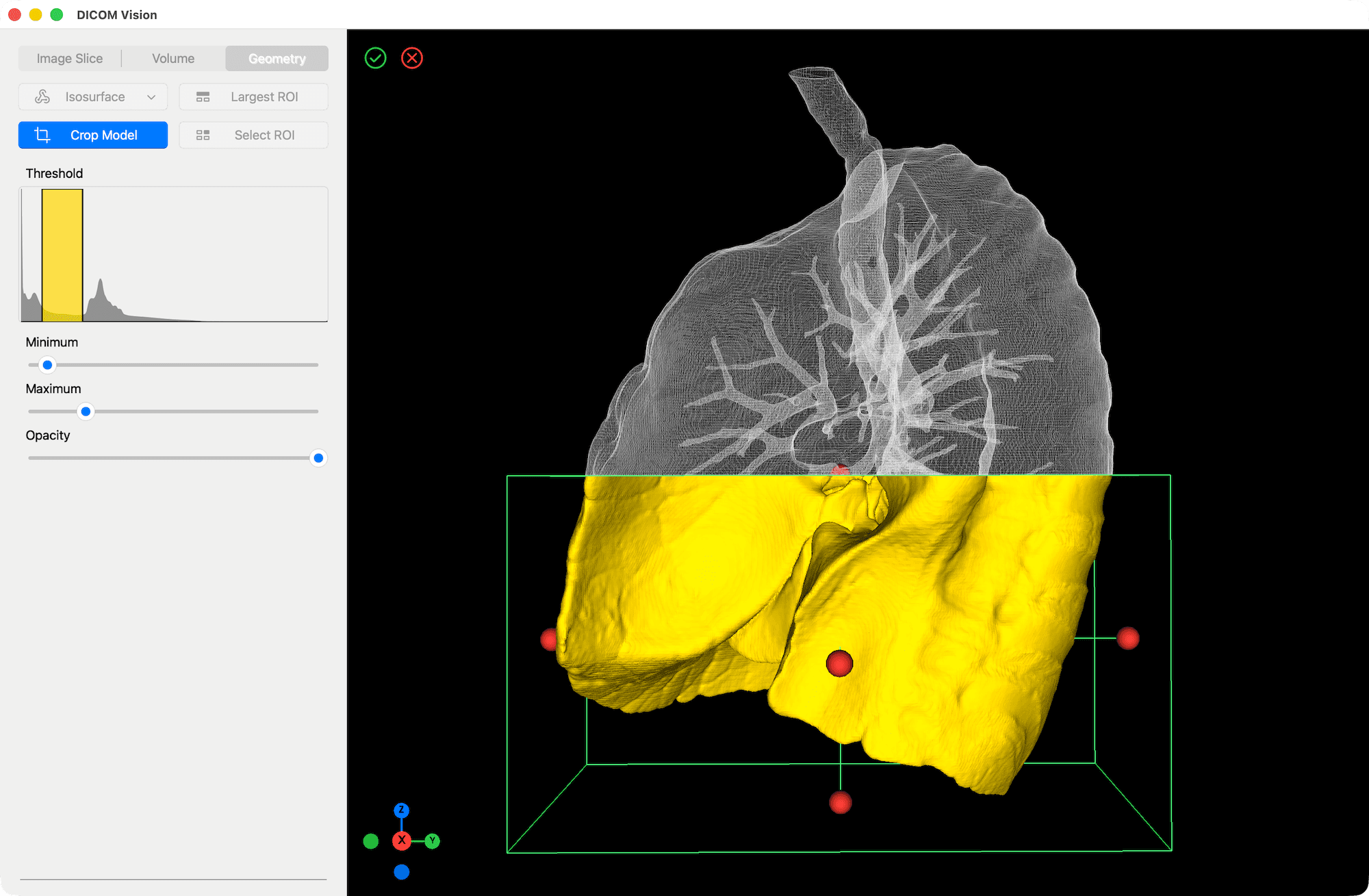
When a handle is dragged inwards, the clipped region is represented by a wireframe, giving you visual feedback of the portion of the model that will be discarded. Select the green 'Tick' button found at the top-left of the Viewer to accept the crop, or the red 'Cancel' button to cancel it. You can deactivate the crop tool at any time, by clicking the 'Crop Model' button once more.
Crop with Closed Edges vs Open Edges
DICOM Vision can handle the crop in two ways:
- Crop with Closed Edges: A flat surface is generated to fill the edges of the clipped surface, making the model watertight.
- Crop with Open Edges: The edges of the clipped surface are left open.
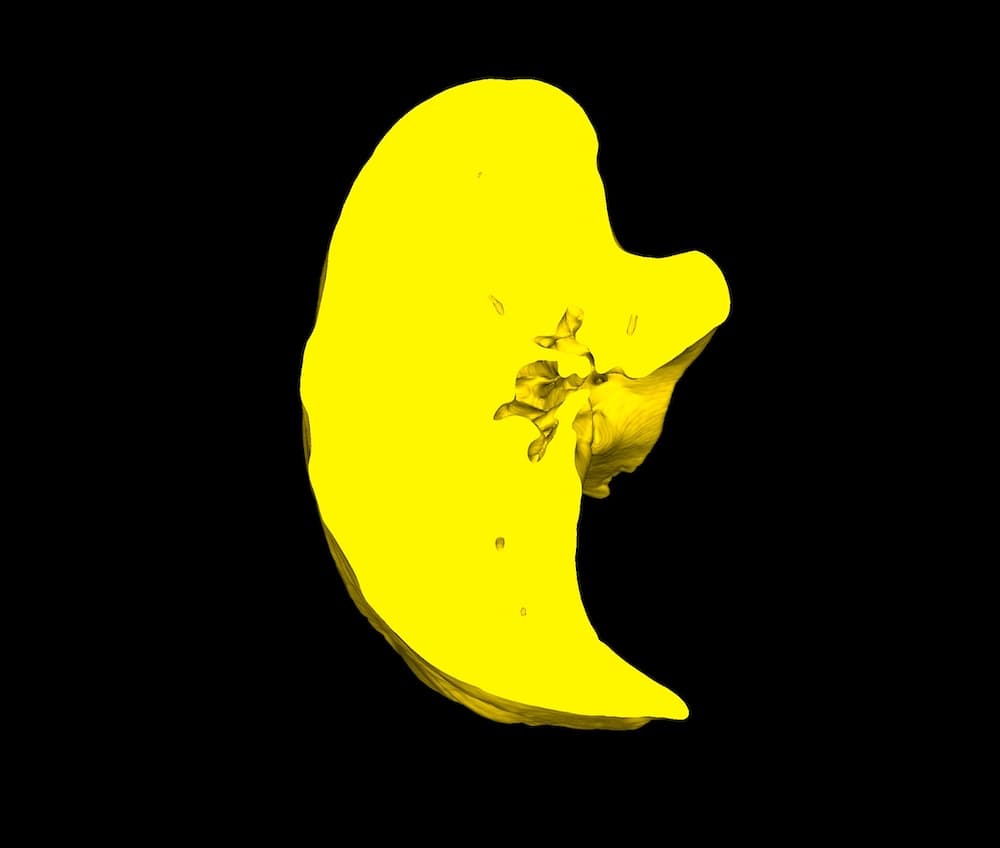
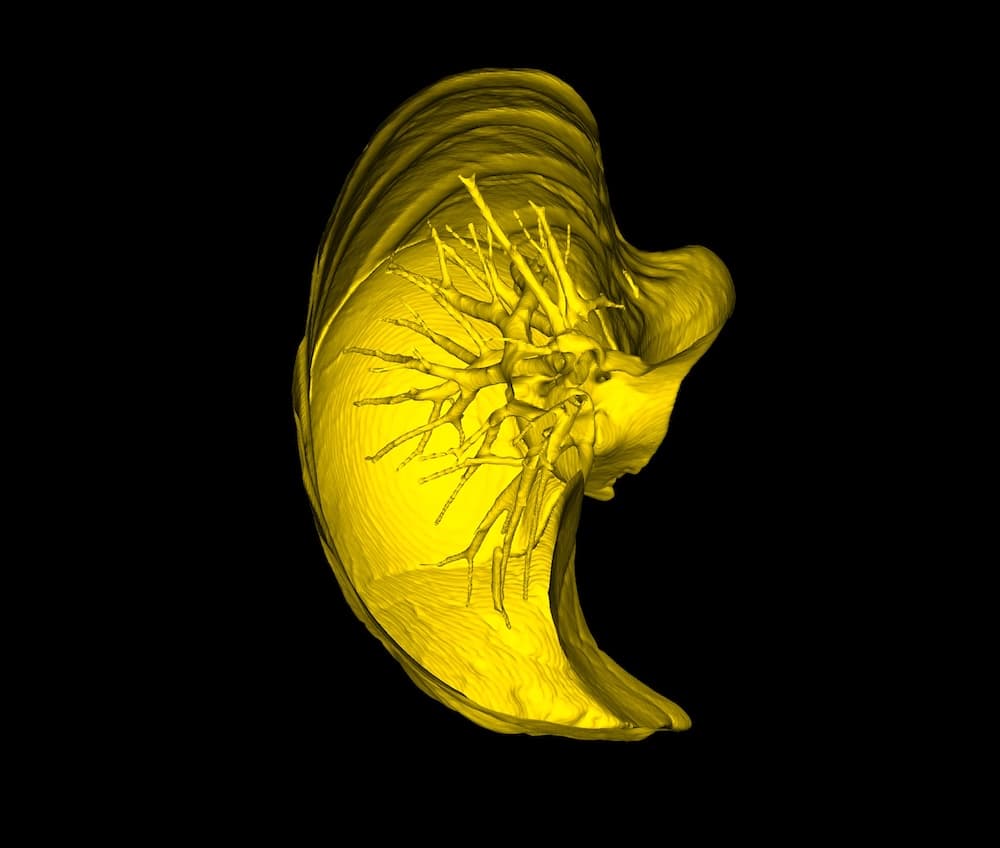
The two images above demonstrate this. On the left is a crop with Closed Edges. On the right is the same crop, but with Open Edges. Crop with Closed Edges is active by default. You can disable this in the menubar under the Geometry menu: Geometry → Crop with Closed Edges.
Crop with Closed Edges is particularly useful if you want to export the 3D Model for external purposes such as 3D printing. In such cases, a watertight model is required.