IMAGE SLICE
Measure Tools
Physicians and radiologists commonly measure specific tissues, organs, and anatomical structures to aid in diagnosis and treatment planning. Common clinical applications include:
- Tumor Monitoring: Measuring tumor size changes over time to assess treatment response.
- Orthopaedic Analysis: Measuring bone alignment angles for surgical planning.
- Opthalmology: Assessing macular grid thickness for retinal diseases.
DICOM Vision provides tools for measuring distances and angles between selected points. Learn how to use each of these below.
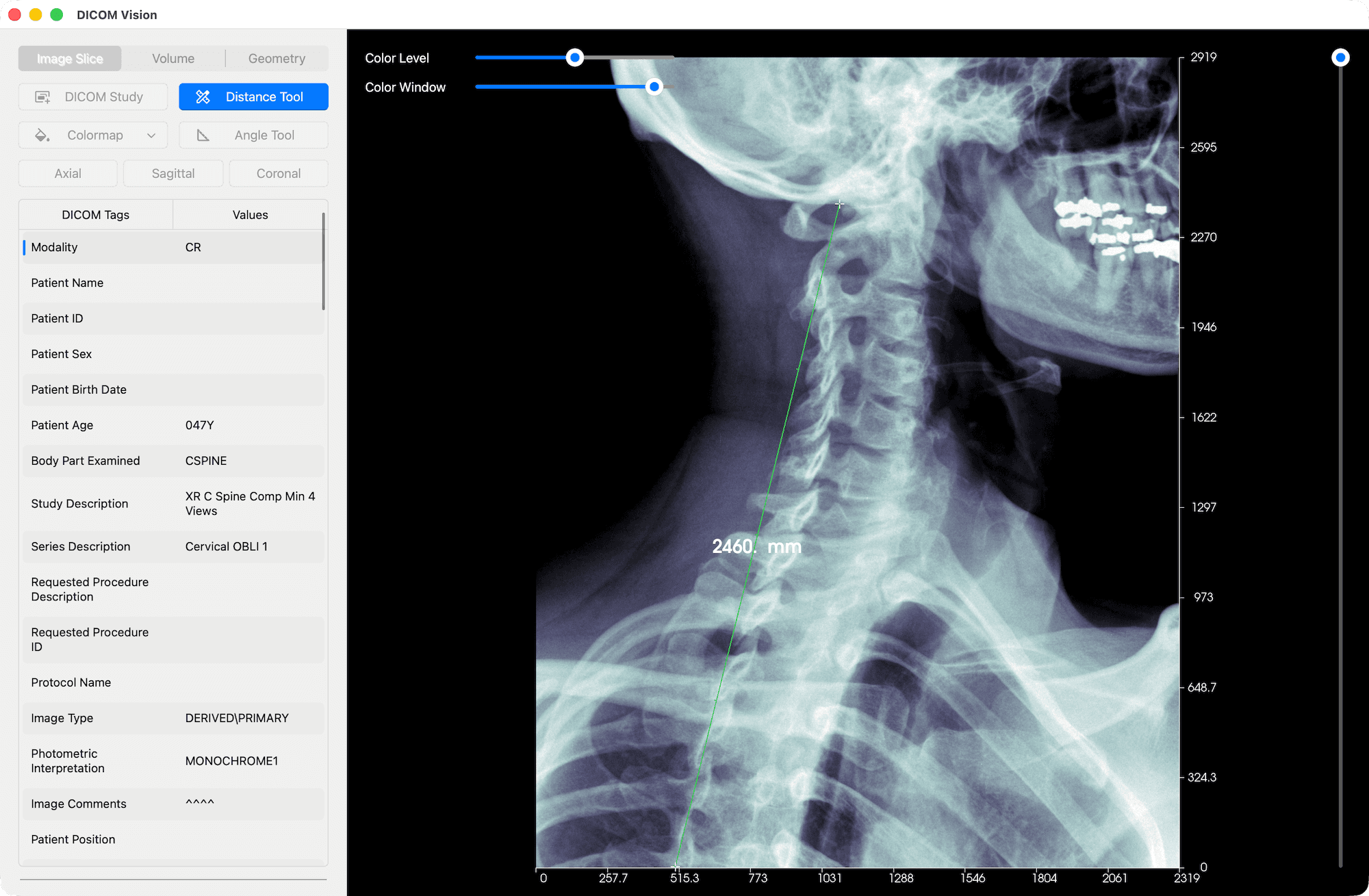
Measure Distance Tool
This tool works as follows:
- Select the 'Distance Tool' button.
- Move your cursor over the image, and left-click to place the first point. A white marker will be placed there.
- Place a second point on the image, marking the distance you want measured. As you move the cursor, the Distance Label representing the distance from the first marker will updated in real-time.
- Once both markers are placed, you can select either and move them to refine your measurement.
When you are done, de-select the 'Distance Tool' button to deactivate this tool.
Measure Angle Tool
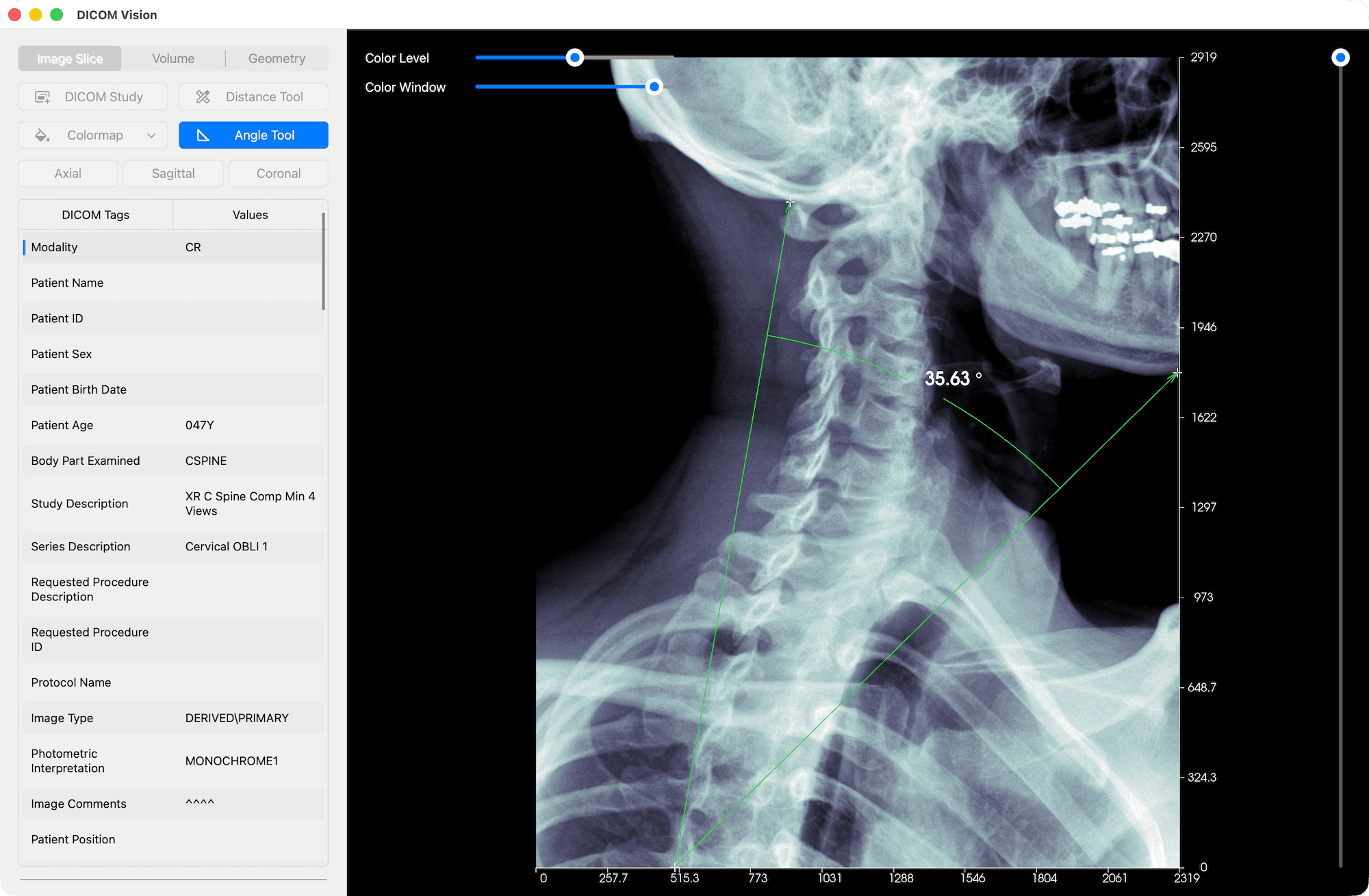
This tool works by calculating the angle between three points that you place on an image. The second point acts as the vertex, with the first and third acting as the arms of the angle. Follow the steps below to create an angle measurement:
- Select the 'Angle Tool' button.
- Move your cursor over the image, and left-click to place a point. A white marker will be placed there.
- Repeat this process two more times to create the initial side, vertex and terminal side of the angle.
- Once complete, the angle between the three points will be displayed.
- You can select any of the markers after all three have been placed, and move them to refine your measurement.
When you are done, de-select the 'Angle Tool' button to deactivate this tool.
© 2026 Marceda Ventures Limited.